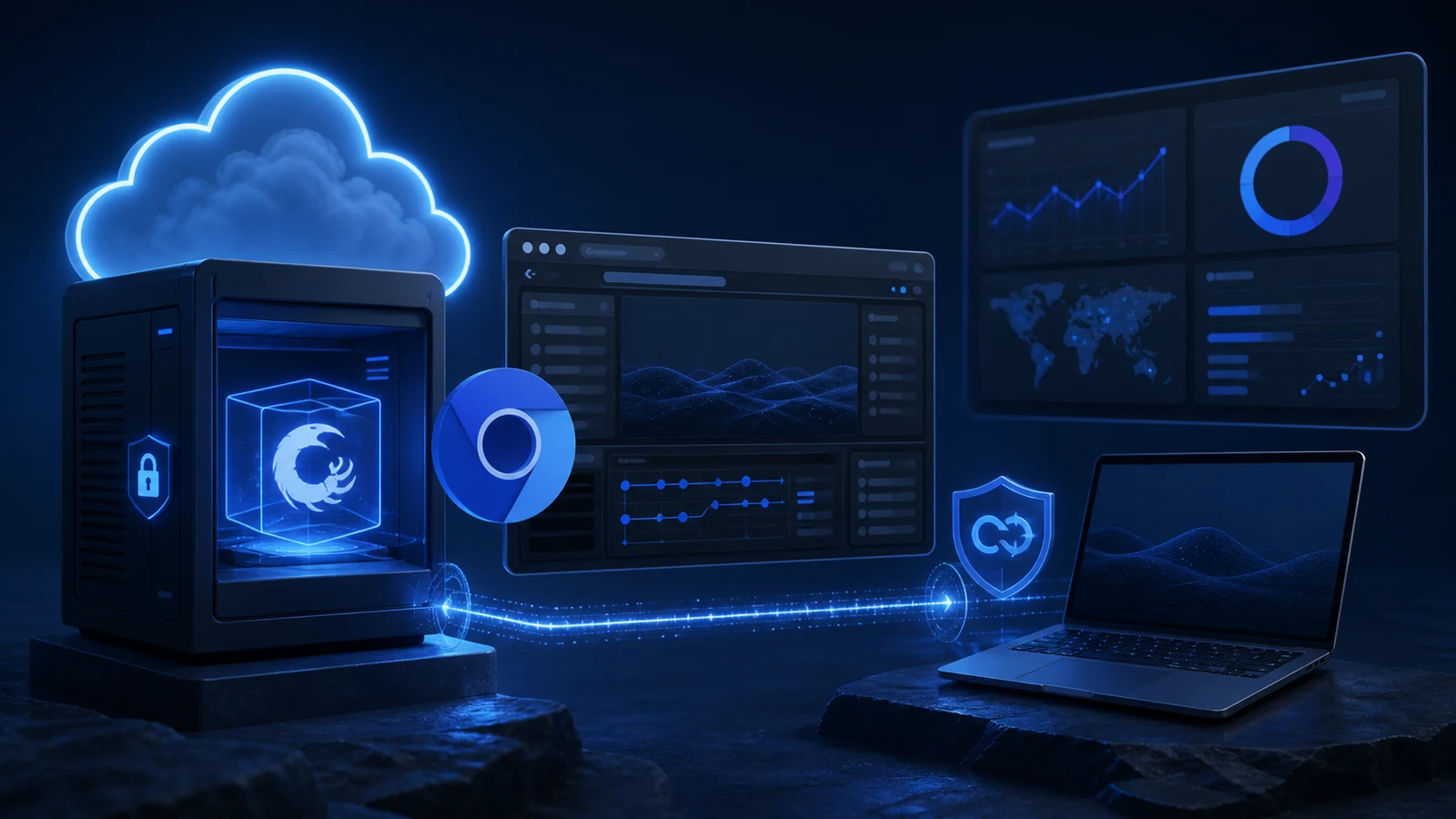
Run OpenClaw and Playwright on a Debian Google Compute Engine VM, keep the gateway bound to loopback, access it through SSH tunneling, install browser dependencies in the same runtime as the worker, and persist browser state only when the workflow requires it.
Create the VM deliberately
Use Debian 12 or a currently supported Linux image. The OpenClaw guide recommends an e2-small class machine and notes that an e2-micro can run out of memory. Start with at least 20 GB of disk if browser binaries, logs, and container layers will coexist.
Do not open the OpenClaw gateway port to the public internet. Allow SSH from a controlled source and use Google Cloud identity, OS Login, or another managed access method appropriate to the organization.
Install the runtime
Update packages, install Docker or the supported Node.js runtime, and follow the current OpenClaw installation guide. Pin versions after the first known-good deployment.
For Playwright in Node.js, install the package and Chromium dependencies in the runtime that executes browser tasks:
npm install playwright
npx playwright install --with-deps chromium
The official Playwright browser installation documentation explains browser and operating-system dependencies. Installing the npm package alone does not install every browser binary.
Keep the gateway private
Bind the OpenClaw gateway to 127.0.0.1, commonly on port 18789. From the operator machine, create a tunnel:
gcloud compute ssh OPENCLAW_VM --zone ZONE -- -L 18789:127.0.0.1:18789
Then use the local endpoint. If the service runs in Docker, ensure container port binding remains loopback-only. A cloud firewall rule is not a substitute for correct application binding.
Configure browser execution
Use the OpenClaw browser tool documentation and browser CLI reference for the current configuration surface. Decide whether each workflow needs a fresh context or a persistent profile. Persistent profiles can retain authentication and sensitive site data; isolate them by workflow and protect the storage.
Set deterministic timeouts, viewport, locale, and download directories. Capture a screenshot, final URL, and task receipt for important runs. Respect site terms, robots and rate limits, and never bypass access controls.
Test normal and failure cases
Use a harmless page first. Verify navigation, title read, screenshot capture, and clean browser shutdown. Then test DNS failure, selector absence, timeout, revoked session, disk pressure, and browser crash. The worker should report a terminal failure without retrying a public action blindly.
Monitor memory. Browser processes can exceed the headroom of a small VM. Add disk and log rotation checks because downloaded media and browser profiles can fill a boot disk quietly.
Outcome and limitations
The runtime and browser installation sequence was exercised in a disposable Debian-compatible environment, and the network design was checked against current primary documentation. GCP IAM, billing, quota, and a live VM were not modified for this test. Production workloads may need a larger machine, managed secrets, backups, patching, and an egress policy.
For a hardened implementation with monitoring and operator handoff, see Agentix OpenClaw implementation services.
Turn this OpenClaw idea into a working agent workflow
Send us the workflow you want to automate. We will map the first implementation path and the lead will go straight into Agentix CRM.